Your availability status
Your status tells the others whether they can come and talk to you. It is shown as a colored dot next to your name.
Changing your status
Click your name in the top-right corner. The Change your status section lists the statuses you can choose:
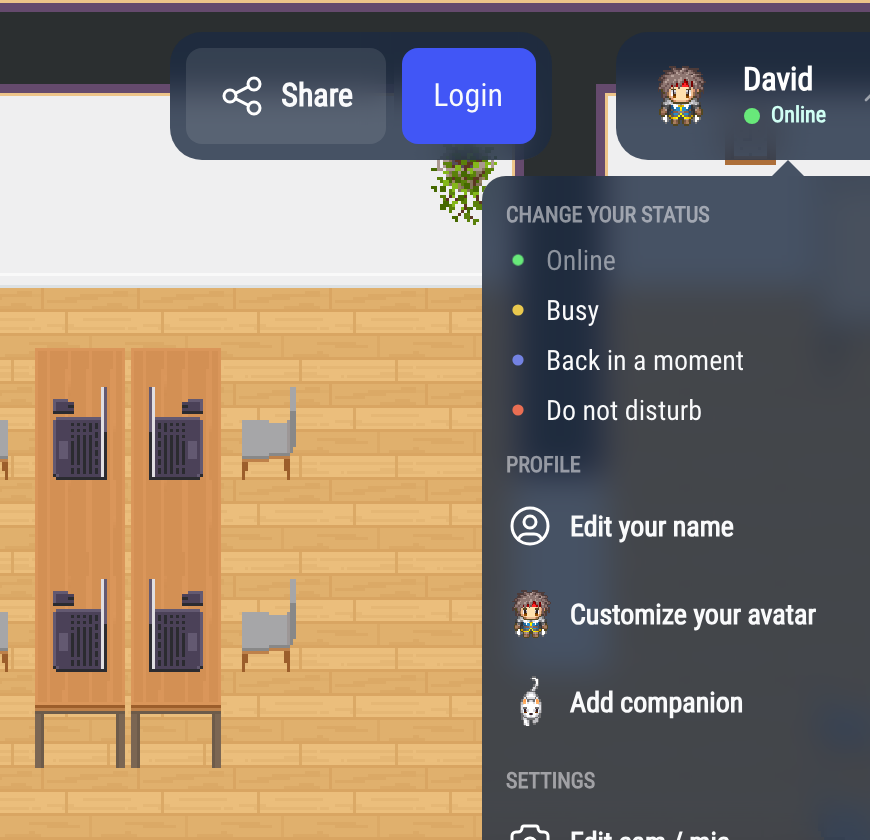
- Online: you are available.
- Busy: you are working, but people can still come to you.
- Back in a moment: you are away from your desk for a short while.
- Do not disturb: nobody should disturb you.
Your status stays the same when you reload the page.
As soon as you move your Woka, your status goes back to Online.
What each status does
| Online | Busy | Back in a moment | Do not disturb | |
|---|---|---|---|---|
| Color of the dot | green | yellow | blue | red |
| People can start a bubble with you | yes | yes, with your camera and microphone off | no | no |
| Your camera and microphone | as you set them | off | off | off |
| Sounds and desktop notifications | on | on | off | off |
| Reminder to go back online | no | after 1 hour | after 1 hour | after 4 hours |
While your status is Busy, Back in a moment or Do not disturb, the camera and microphone buttons are greyed out, and hovering over them tells you which status turned them off. When you go back to Online, your camera and microphone return to how you left them.
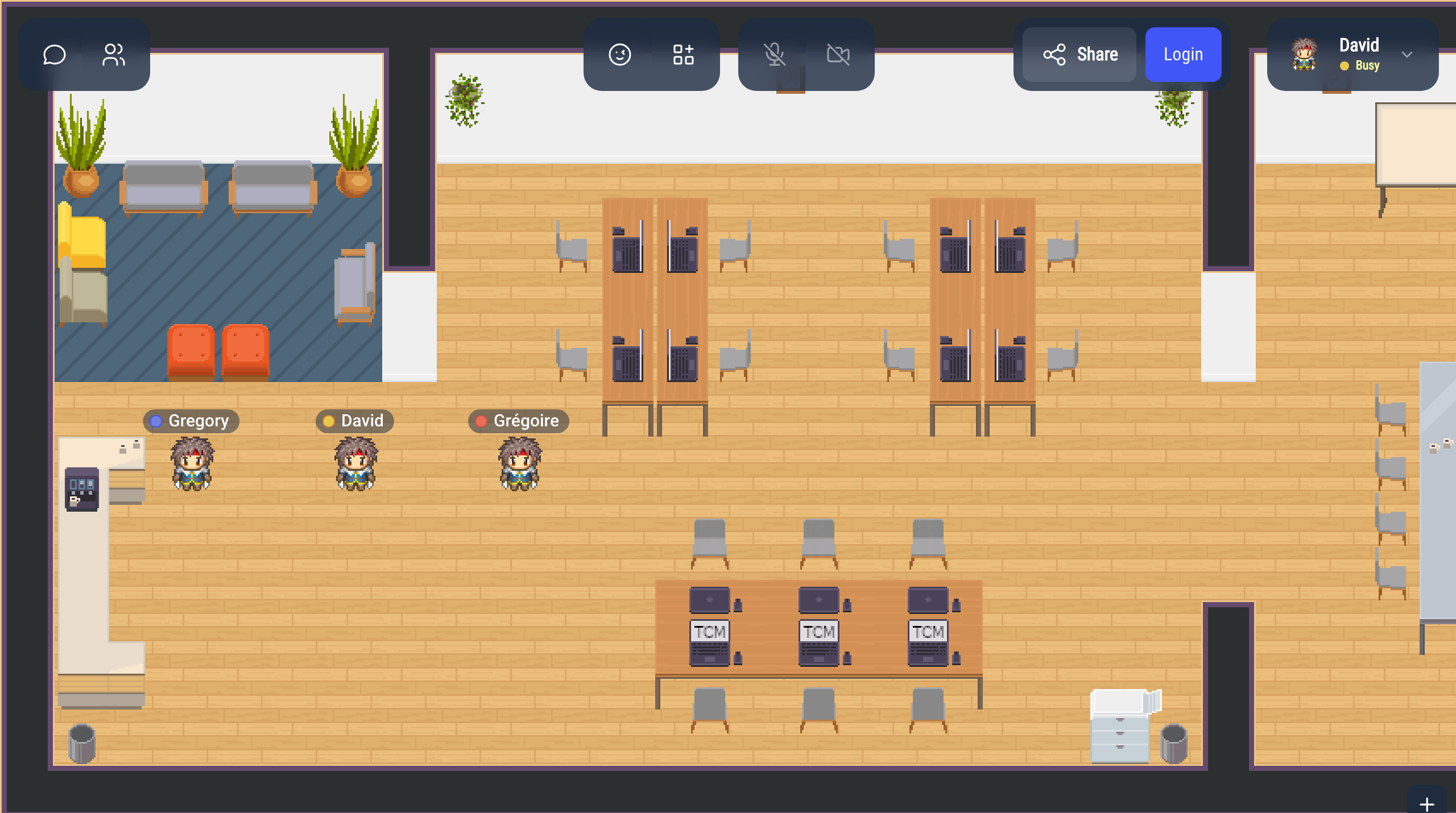
When you are Busy
People can still walk up to you and start a bubble, but your camera and microphone stay off. A message tells you who wants to talk:
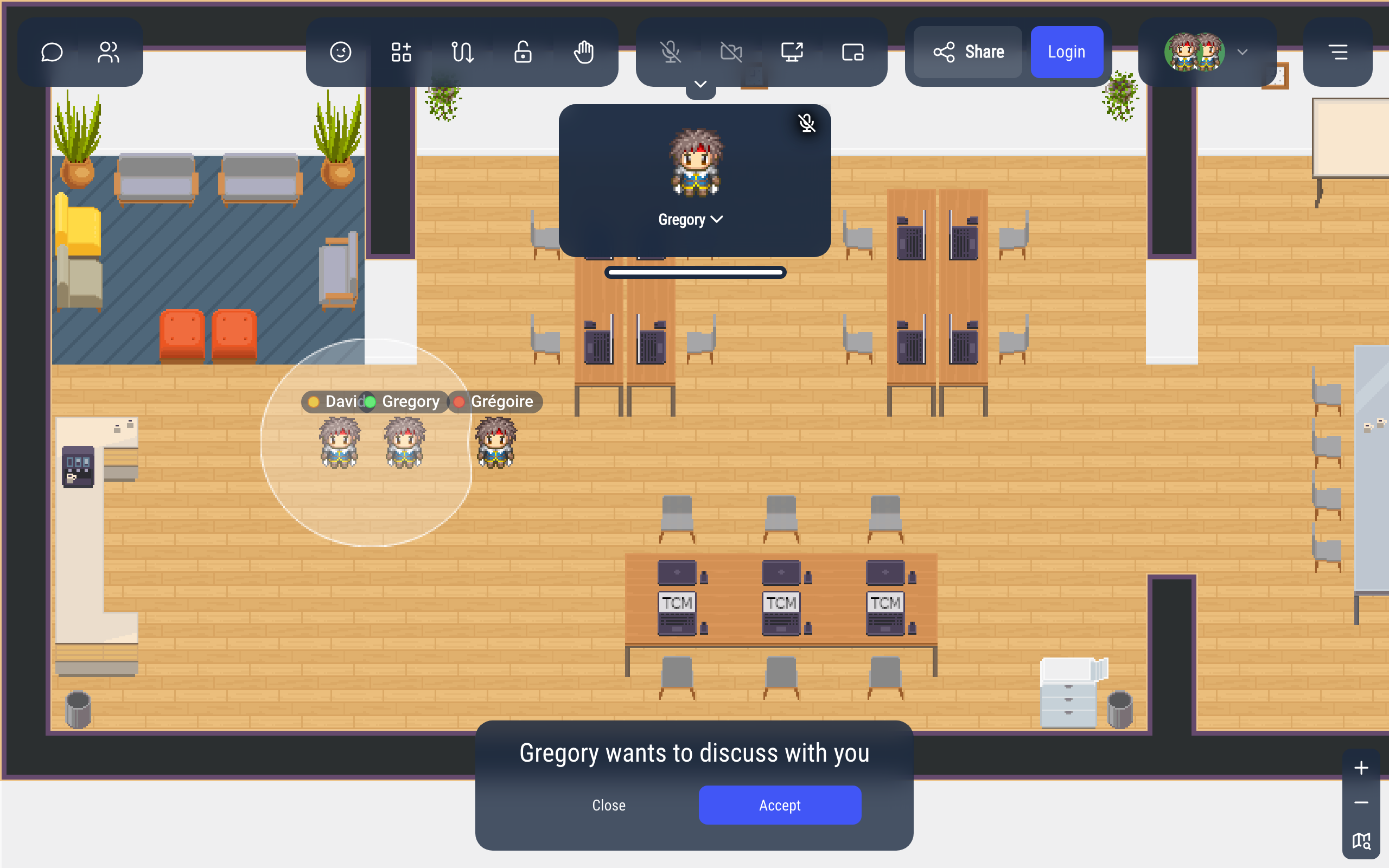
- Accept: you go back to Online, your camera and microphone come back, and you can talk.
- Close: you stay Busy in the bubble, with your camera and microphone off.
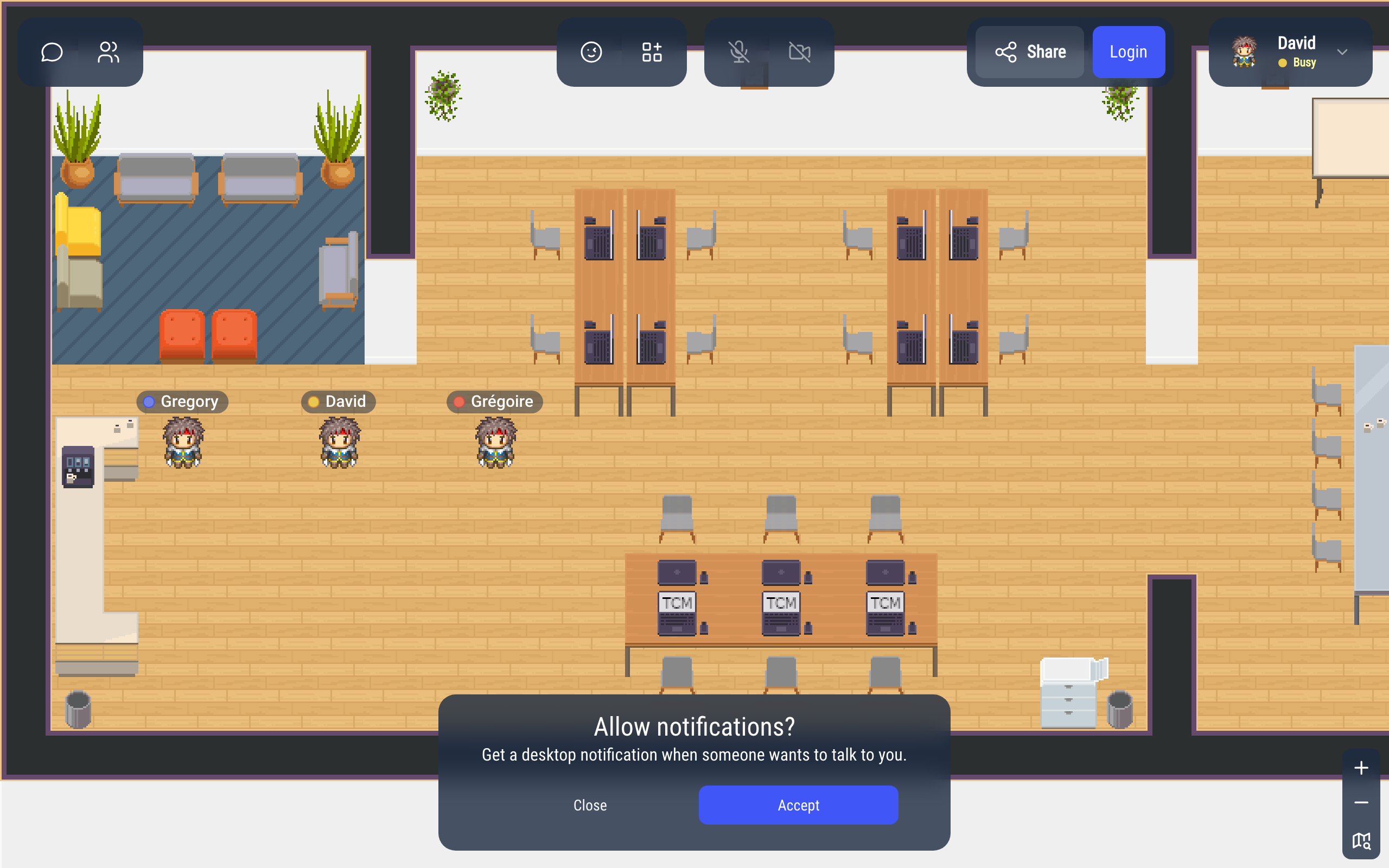
When you choose Busy and your browser does not show notifications yet, WorkAdventure asks Allow notifications? so it can warn you with a desktop notification when someone wants to talk to you while you are in another tab. Click Accept, then allow notifications in your browser.
Going back online
After 1 hour in Busy or Back in a moment, or 4 hours in Do not disturb, WorkAdventure asks Do you want to go back online?. Click Confirm to go back to Online, or Close to keep your status (you will be asked again later).
Automatic statuses
WorkAdventure also sets some statuses for you. While one of them is active, you cannot change your status by hand.
- Away: you switched to another window or tab, or clicked inside a website opened next to the map, and you are not in a conversation. Your status comes back as soon as you return. Whether your camera and microphone stay on while you are away is set in the Settings. A status you chose by hand (like Busy) is shown instead of Away.
- In a meeting: you are in a meeting room, a Jitsi or BigBlueButton room, on a podium, or in its audience.
- Silent: you are in a silent zone of the map.
- Not available: the map does not let you talk to people.
- Sound blocked: your browser blocks the sound until you click on the page. A message says "Your browser blocked audio playback": click Turn sound on, or click anywhere on the page or press any key.
When the automatic status ends, your previous status comes back. But walking always sets you back to Online: if you walked into a meeting room or a silent zone, you are Online when you leave it.
What the others see
Your colored dot and the name of your status appear next to your name in the user list. On the map, your dot appears next to your name, and people see the name of your status when they click your Woka.
If your administrator connected WorkAdventure to Microsoft Teams, your status can be synchronized with your Teams presence, in one or both directions (see Microsoft Teams).