Sharing your screen
Share your screen, a window or a browser tab with the people you are talking to: slides, a document, some code, a design…
Starting a screen share
The screen sharing button appears in the action bar as soon as you are in a conversation: a discussion bubble, a meeting room, or on a podium or in the megaphone when you are the one speaking. In a discussion bubble, it only appears once someone joins you. In a meeting room, it appears as soon as you enter, even if you are alone.

- Click the screen sharing button (Share your screen).
- Your browser asks what to share: your entire screen, a window, or (in Chrome and Edge) a browser tab. Choose, then click Share (Allow in Firefox).
To share the sound of a video along with the image, use Chrome or Edge: share a browser tab and tick the option to share the tab audio. Firefox and Safari do not share sound.
While you share, the button is highlighted, and your share appears as a second video labelled You, next to your camera.
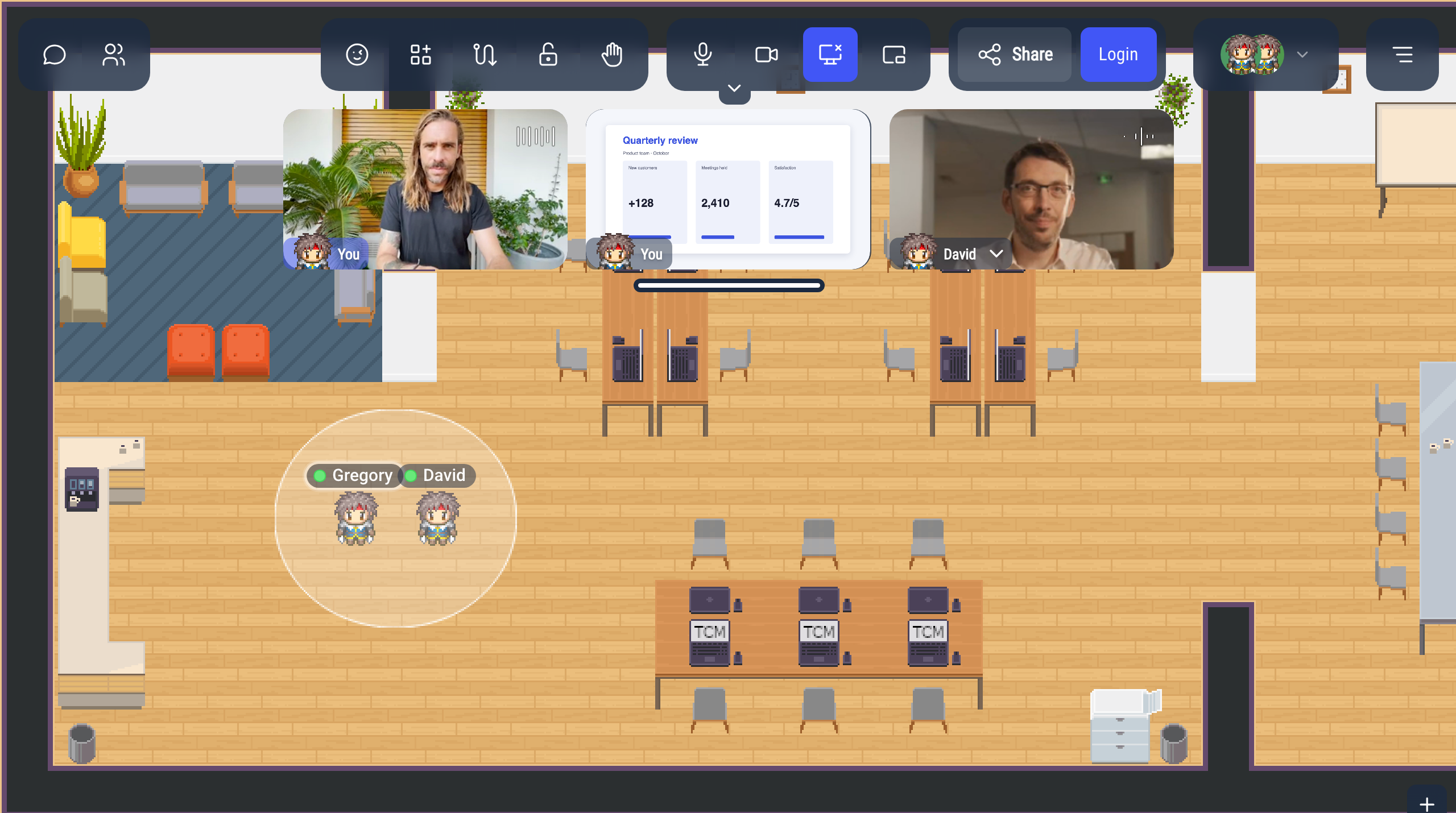
What the others see
The people in the conversation see your screen in a large view, below the videos.
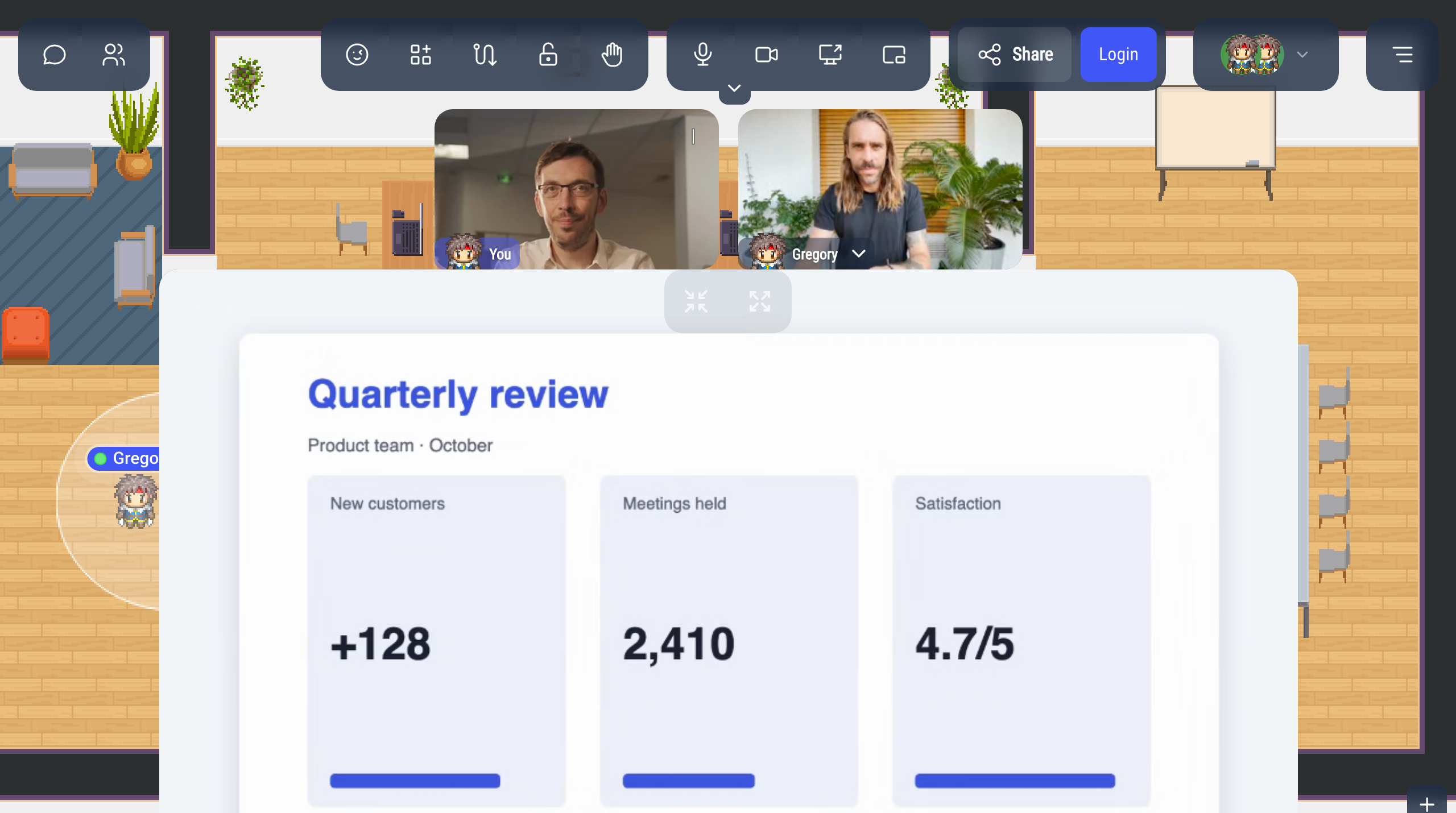
Hover over the shared screen to show two buttons:
- the shrink button puts the shared screen back among the other videos,
- the enlarge button makes it fill the whole window, with the other participants' videos in a side panel (the arrow on the edge hides it). To come back, click the shrink button or Exit fullscreen in the side panel.
Several people can share their screen at the same time: the most recent share is shown in the large view, and the others stay among the videos. Click the enlarge icon of a video to show it in the large view instead.
Stopping a screen share
Click the screen sharing button again, or Stop sharing in the bar your browser shows.
Your share also stops when you leave the conversation.
Image quality
To change the quality of your screen share, open the Settings menu:
- Screen sharing quality: Low (up to 1280×720), Recommended (up to 1920×1080, the default) or High (up to 2560×1440).
- If network bandwidth is limited: Keep text readable (the default, best for slides and code), Keep smooth animations (best for videos) or Keep framerate and resolution balanced.
The maximum resolution is set when you start sharing: after a change, stop and start your share again.
Codecs
Your screen is compressed by a video codec before it is sent. WorkAdventure uses the first of these codecs that your computer can run smoothly:
| Codec | Bandwidth for the same image | Work for your computer |
|---|---|---|
| AV1 | the lowest | the highest: on most computers, the processor does it all |
| VP9 | about 40 % more than AV1 | about half of AV1 |
| H.264 | about twice AV1 | very little: nearly every computer encodes it on the graphics card |
With the Low quality, AV1 is skipped.
Your browser tells WorkAdventure which codecs run smoothly on your computer. If after a few minutes, your computer detects it has a hard time keeping up, WorkAdventure switches to a simpler codec.
Firefox cannot send AV1 or VP9 in the layered form the media server needs. It means that in large meetings, it falls back to H.264 there.
To check the codec of a video, turn on Display video quality statistics in the Settings.
When you cannot share your screen
- On a phone or a tablet: most mobile browsers cannot share the screen, so the button does not appear.
- In a Jitsi or BigBlueButton room: use the screen sharing of Jitsi or BigBlueButton instead. Opening one of them stops your WorkAdventure share.
- The map turned it off: the map's script can disable screen sharing. The button is then greyed out.
- "Cannot start screen sharing" appears on a Mac: macOS does not let your browser record the screen. Allow it in System Settings > Privacy & Security > Screen & System Audio Recording, then restart your browser.