Notifications
WorkAdventure tells you what is happening in four ways: notifications on your desktop, messages inside WorkAdventure, sounds, and emails. This page explains each of them and how to turn them on or off.
Desktop notifications
Desktop notifications appear on your computer, outside the browser, when WorkAdventure is not the window you are looking at. They are off by default.
You get one when:
- someone wants to talk to you: someone walked up to you and started a bubble, or joined you in a meeting room where you were alone,
- a chat message arrives: click the notification to open the chat on that conversation.
You only get them if all of these are true:
- WorkAdventure is in the background (another tab or another app),
- Notifications is on in the Settings (or you accepted the Allow notifications? question, see Your availability status),
- your browser allows WorkAdventure to show notifications,
- your status is not Back in a moment or Do not disturb, and you are not in a silent zone, a Jitsi or BigBlueButton room, or on a podium,
- for a chat message, the room is not muted (see Writing messages).
If you refused notifications
If notifications are blocked in your browser and you click Accept on Allow notifications?, or turn on Notifications in the Settings, WorkAdventure shows Notifications access denied, with a picture of where to change it (in Chrome):
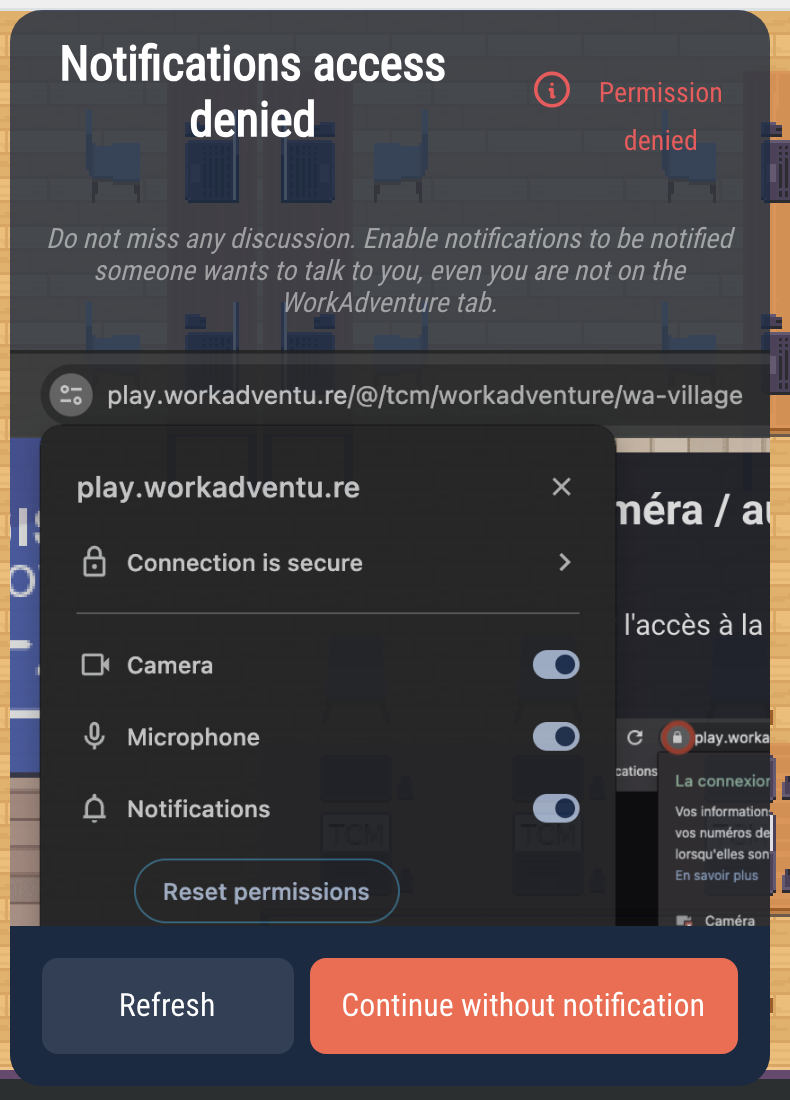
Once you have refused, WorkAdventure cannot ask again. To allow notifications:
- Click the icon at the left of the address bar of your browser (a padlock or two sliders).
- Turn on Notifications (or set it to Allow, depending on your browser).
- Reload the page (Refresh), then turn on Notifications in the Settings.
If notifications are blocked, the Notifications switch of the Settings goes back off.
Messages inside WorkAdventure
Some messages appear inside WorkAdventure, whatever the Notifications setting:
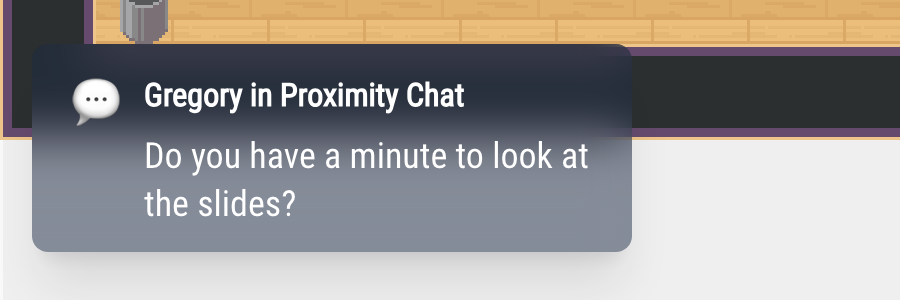
- At the bottom left, a chat message, a new poll or question, or an invitation to a chat room, when you are not looking at that conversation (in a bubble, the chat opens by itself unless you closed it; muted rooms show nothing). They stay 10 seconds. Click one to open the conversation, or the list of rooms for an invitation.
- At the top right, short messages: the name of the area you walk into, "Announcement" when someone starts the megaphone, a moderator muting your microphone, recording messages, and so on. They stay 5 seconds.
Sounds
| Sound | When | How to turn it off |
|---|---|---|
| Bubble | You, or someone, join or leave your bubble (up to 5 people) | You cannot turn it off; choose Ding or Wobble in Bubble sound in the Settings |
| Meeting room | You, or someone, join or leave your meeting room (up to 5 people); you receive or send a meeting invitation | Your status |
| New message | A message arrives in a conversation you are not looking at | If you are logged in, Chat sounds in the menu, Chat tab; or Mute Room for one room |
| Megaphone | Someone starts the megaphone | Chosen by the map creator (see Megaphone) |
| Recording | A recording starts or stops (a spoken message) | Chosen by the map creator, in Configure my room > Recording |
The statuses Back in a moment and Do not disturb mute all these sounds, except the recording message. So do silent zones, Jitsi and BigBlueButton rooms, and podiums.
Emails and your phone
- Emails: if you are not connected when you receive a chat message, you may receive an email (see Using the chat).
- On your phone: use a Matrix app to receive the notifications of the chat rooms (see Getting messages on your phone).