Sharing files
You can send files in the chat: documents, images, videos or audio. How the file reaches the others depends on where you send it.
| Chat rooms | Proximity chat | |
|---|---|---|
| Who receives the file | The members of the room | The people in your bubble or meeting room right now |
| People who arrive later | Can see it, depending on the room's history settings | Don't get it |
| Stored on a server | Yes, in the room history | No, it goes straight from your browser to theirs |
| Limits | File size set by the chat server | 10 people, 1 GB per file, 3 files at a time |
Sending a file
- In the chat, click + next to the message box.
- Click File attachment in a chat room, or Direct file transfer in the proximity chat.
- Choose one or more files.
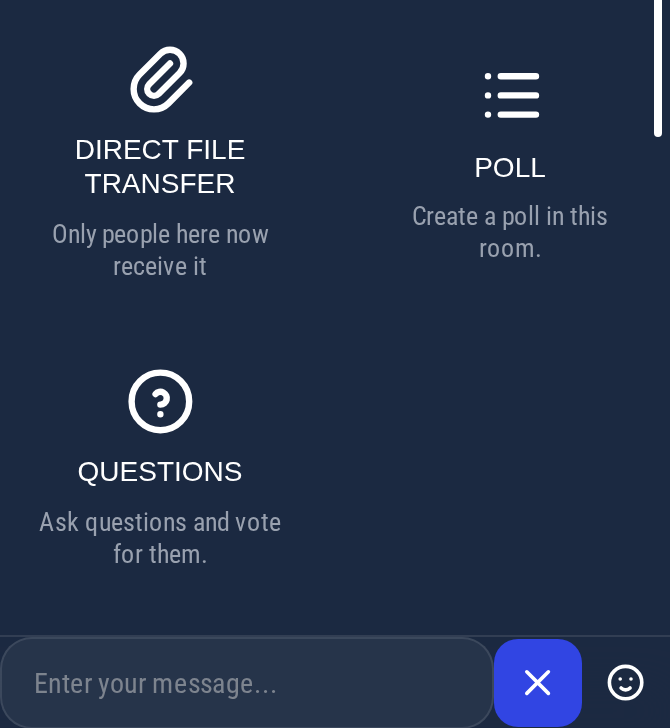
You can also drag files onto the conversation, or paste them into the message box.
If the button is greyed out, file sharing is turned off for your world. Administrators can turn it on in the chat settings.
In chat rooms
The file is uploaded to the chat server and stays in the room history, like the messages. Members of the room can open or download it whenever they want, even if they were not connected when you sent it.
Whether people who join the room later can see it depends on the room's Who can read history setting (see Creating a chat room).
Images, videos and audio files are displayed directly in the conversation. Other files come with a download link.
In the proximity chat: direct file transfer
Like the messages of the proximity chat, files sent there are not stored. The file goes directly from your browser to the browser of each person in your bubble or meeting room. The connection is encrypted. When a direct connection is not possible, the file goes through a relay server that passes it along without keeping it.
Who receives the file
Only the people who are in your bubble or meeting room when you send the file. Someone who joins afterwards does not get it: send it again if they need it. People you have blocked do not receive your files.
Receiving a file
The file appears in the chat with an Accept and a Decline button. Nothing is downloaded until you click Accept. The chat then shows the progress and the estimated time left.
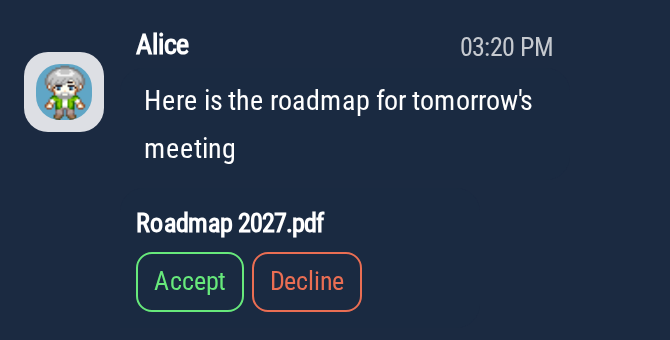
Once the file is received, images, videos and audio files are displayed directly in the conversation. Other files come with a download link.
Save the file before you leave the bubble or meeting room. Once you leave, the file is no longer available.
Following the transfer
Under the file you sent, each person appears with their avatar and a status:
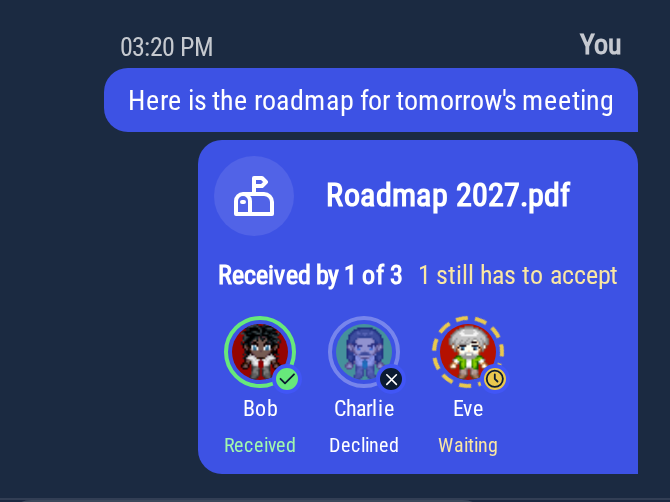
- Waiting (yellow clock): they have not accepted the file yet.
- A ring that fills up around their avatar, with a percentage: the file is being sent to them.
- Received (green check): they have the file.
- Declined: they declined the file.
- Not delivered (red "!"): the transfer was interrupted, for example because they left the bubble.
The line above the avatars sums it up, for example "Received by 2 of 3" and "1 still has to accept".
The file is sent from your browser. If you leave the bubble or meeting room, or close the tab, before everyone has received it, the people still waiting will not get it.
Limits
- Direct file transfer is available when there are 10 people or fewer in the bubble or meeting room, you included. Above that, the button is greyed out.
- Each file can be up to 1 GB.
- You can send up to 3 files at a time.