Access the visitors list
What is a visitor?
A visitor is a user who self-registers an account in your world. Registration is done from the login page, using the "Register" button.
Unlike anonymous users, visitors are authenticated. They can access the chat features of WorkAdventure:
- send direct messages to other users using the chat
- open and participate in chat rooms (provided the chat room is public)
Pre-requisites
The list of visitors contains sensitive information, like email addresses.
Before accessing the visitors list, you need to configure an appropriate privacy policy. The privacy policy describes your use case for visitors data (what you are going to use it for). This is mandatory to comply with the GDPR.
If you did not configure a privacy policy yet, you will be prompted to do so when trying to access the visitors list.
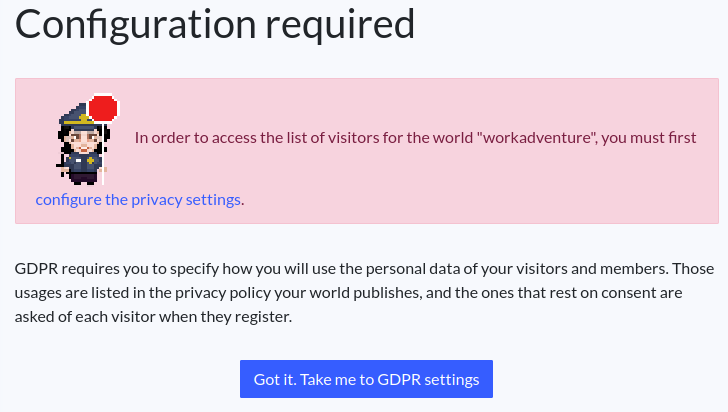
See Configuring your privacy policy for more information.
Combined with mandatory authentication, self-registration turns a public showroom or your own office into a source of qualified leads. Sync them to your CRM in real time with the webhook and the Inbound API.
Access the visitors list
From the administration dashboard, click on the Visitors menu item on the left sidebar.
The list of visitors will be displayed in a sortable and filterable table.
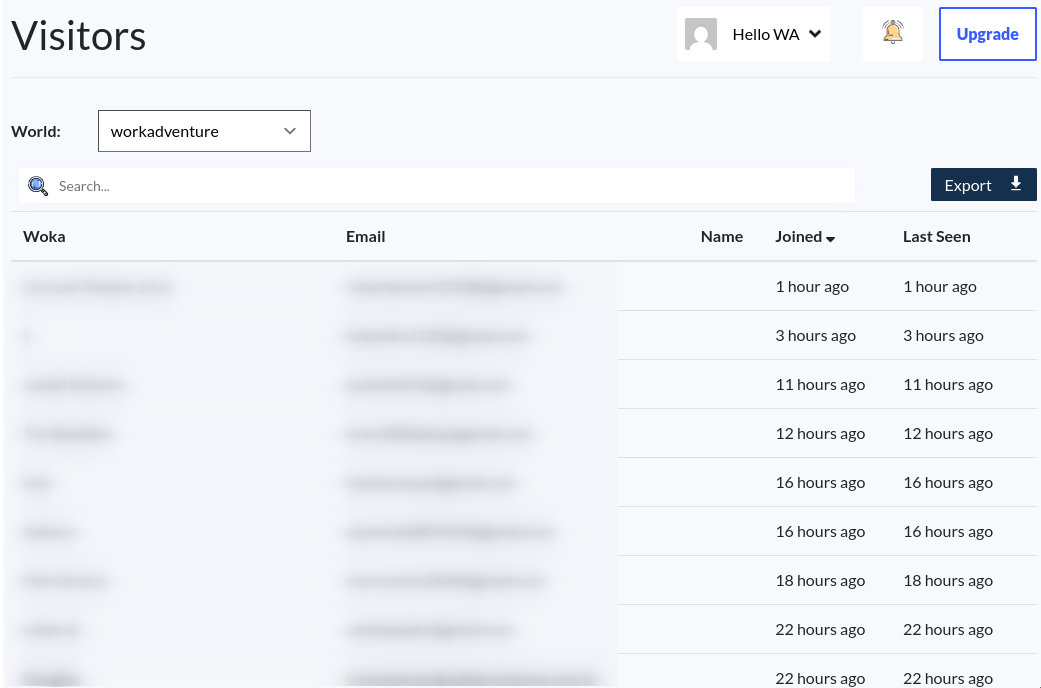
An "Export" button allows you to export the list of visitors in a CSV file. The export always contains every visitor: the search and the filter of the table are not applied to it.
Who agreed to what
If your privacy policy declares a purpose that rests on consent - newsletters, event announcements, surveys, third-party sharing, or your own purpose set to "Your consent" - WorkAdventure asks each visitor about it and records the answer. The table then shows one column per question, with three possible values:
| Value | Meaning |
|---|---|
| Granted | They agreed. |
| Denied | They were asked and said no, or they agreed and later withdrew. |
| Not asked | Nobody has put the question to them yet - usually because they registered before you declared the purpose. They are asked at their next connection. |
Use the dropdown next to the search box to narrow the list to one of those values, for example to see who is still unanswered.
The same columns are in the CSV export, followed by a Consent last updated date.
Unsubscribes in your mailing tool do not come back to WorkAdventure. WorkAdventure does not send your newsletters: you export this list and mail from your own tool, so an unsubscribe lands there and stays there. That leaves two records of the same fact. Mirror those unsubscribes back here - edit the member and set the consent to Denied - or the next export will tell you they still agree.