Send new visitors to your CRM
When someone signs up as a visitor of your world, you probably want them in your CRM, the minute they arrive, with their marketing consent up to date. This recipe builds that with n8n and HubSpot, in two small workflows:
- New visitor → contact: every new visitor becomes a HubSpot contact.
- Consent → contact: the contact's newsletter consent follows what the visitor decided in WorkAdventure, including when they change their mind later.
Using another CRM? Only the HubSpot nodes change, see Other CRMs.
Before you start
- A premium world where visitors can sign up (see below).
- n8n with the WorkAdventure nodes installed and a WorkAdventure API credential, as explained in n8n. Your n8n must be reachable from the internet over HTTPS, which n8n Cloud is.
- A HubSpot account. The free CRM is enough.
Make your guests register
A visitor is someone who creates an account in your world by themselves: with the Register button of the login screen, or with one of its social login buttons. That's who this recipe sends to your CRM.
By default, though, anyone with the link to your world walks in as an anonymous user, without an account. WorkAdventure doesn't know their name or email, so nothing reaches your CRM. And as long as people can come in without an account, few will bother creating one.
To turn your guests into leads, make the account compulsory. In the admin dashboard, open Authentication in the left sidebar, turn on Mandatory authentication, keep Allow self-registration on, and click Save authentication settings.
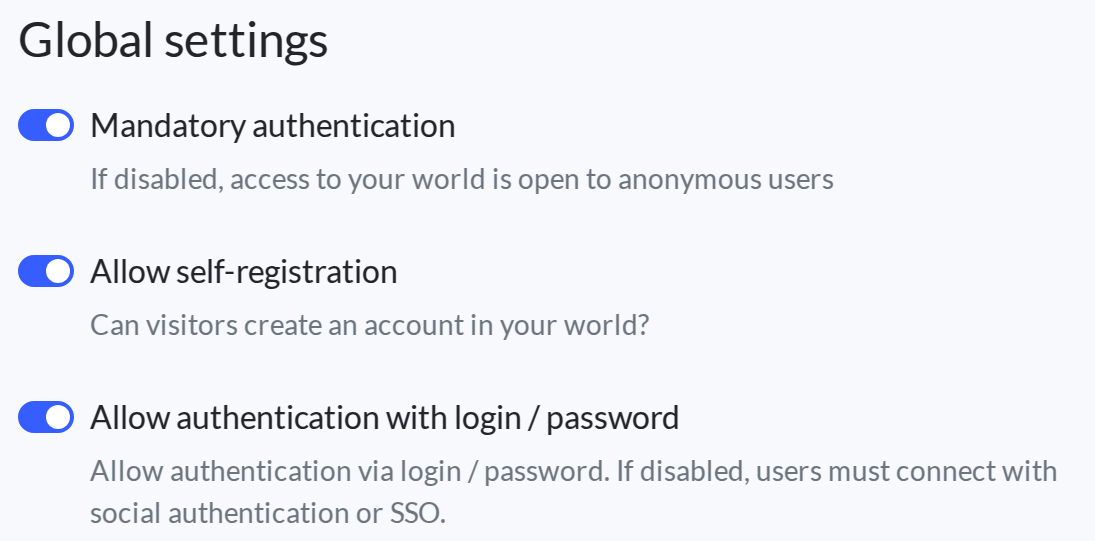
From now on, guests land on the login screen. They can't skip it: they sign in, or they register.
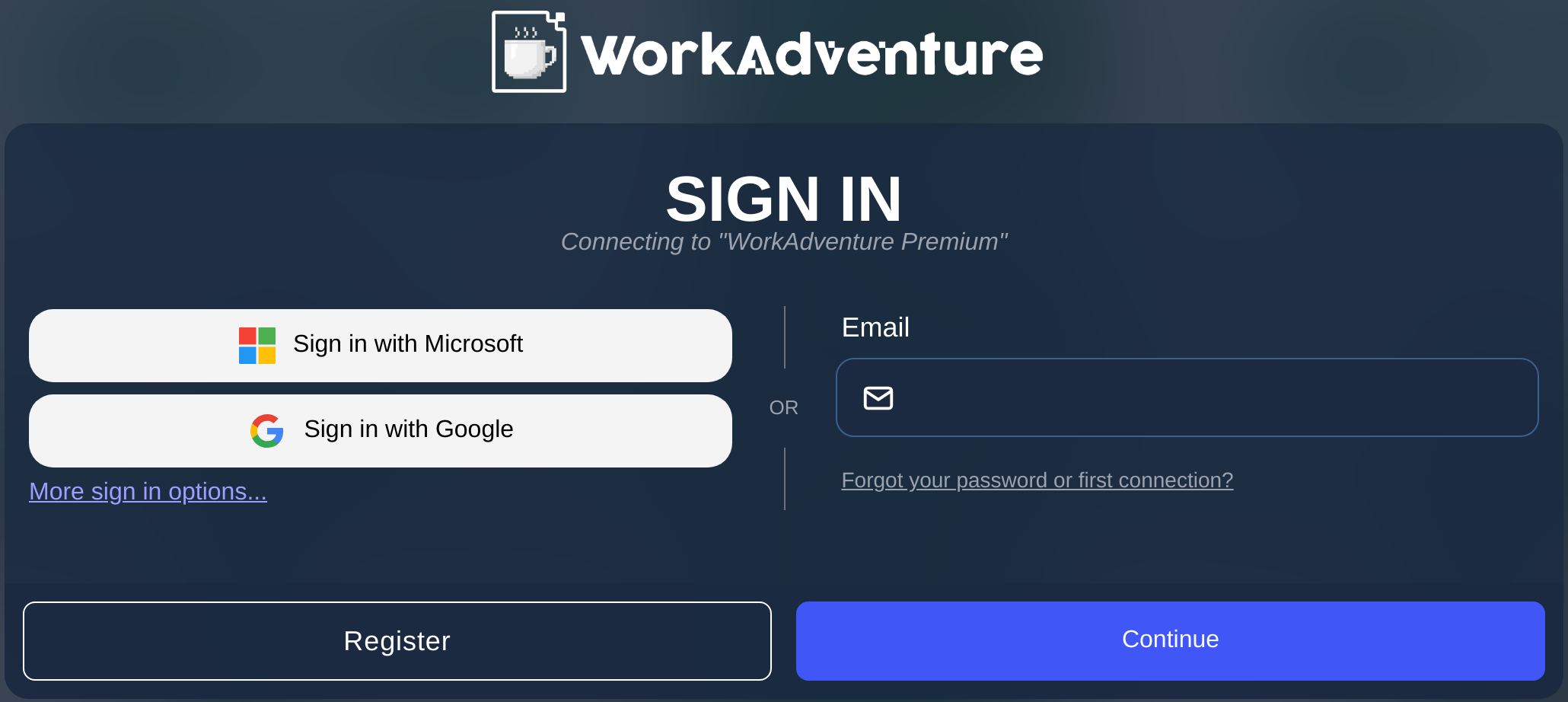
See Managing access to your world for the other types of users.
Step 1: connect n8n to HubSpot
n8n connects to HubSpot with a service key:
- In HubSpot, go to Development > Keys > Service Keys and click Create service key.
- Give it a name, click Add new scope and add
crm.objects.contacts.readandcrm.objects.contacts.write. Click Create. - Open the key, click Show, then copy it.
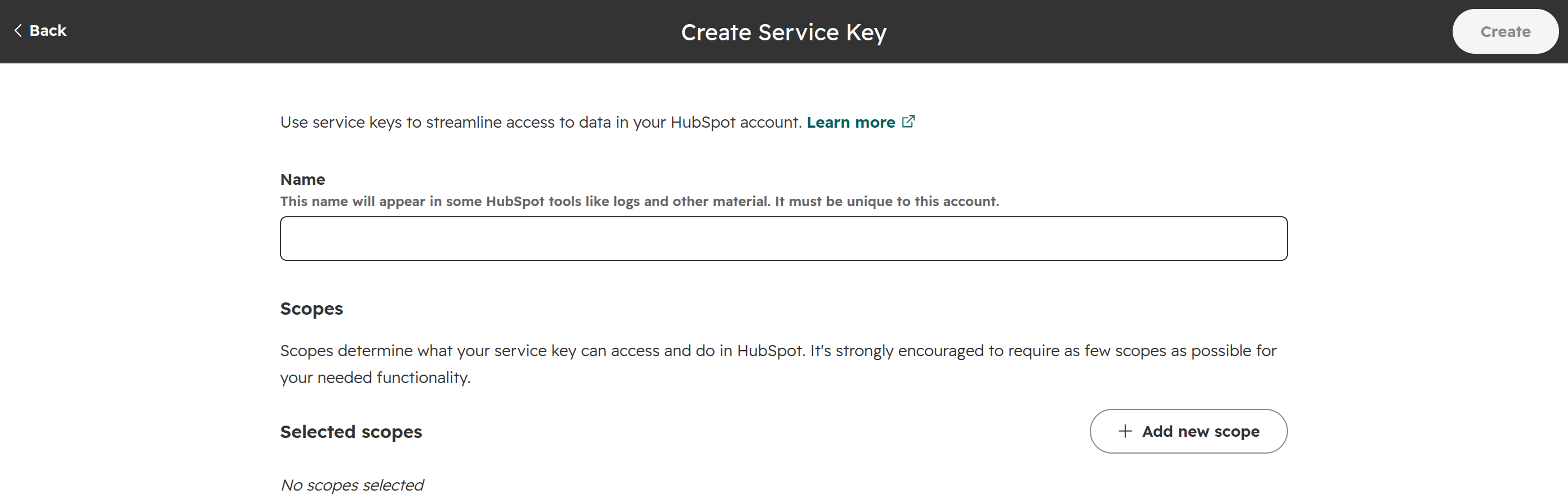
In n8n, create a HubSpot Service Key credential and paste the key.
When creating the credential, don't pick HubSpot API: it uses the API keys HubSpot has retired. Make sure to use HubSpot Service Key instead.
Step 2: add a consent property to your contacts
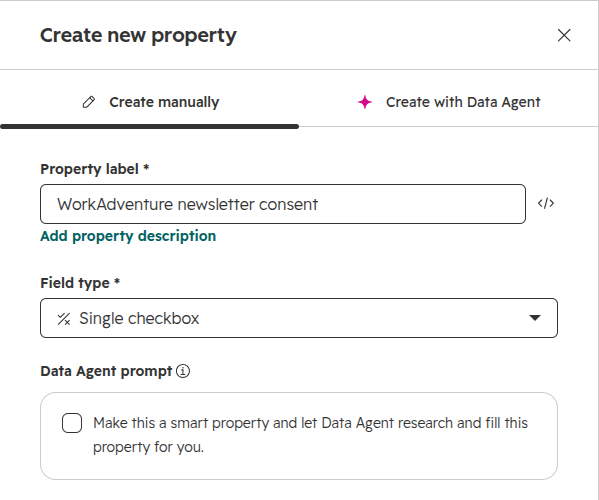
HubSpot needs a field to store the newsletter consent. In HubSpot, go to Settings > Data Management > Properties, click Create property and create:
- Property label:
WorkAdventure newsletter consent - Field type: Single checkbox
Step 3: turn each new visitor into a contact
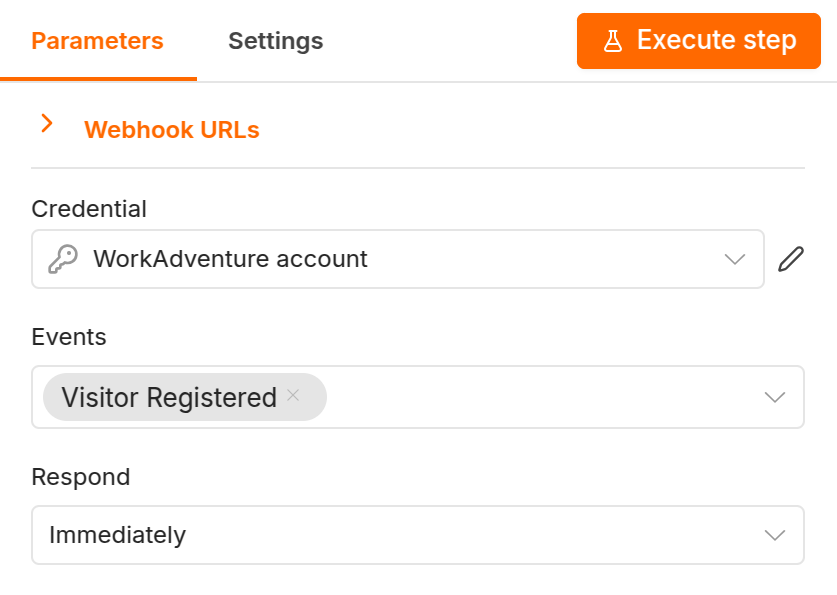
Create a workflow and add a WorkAdventure Trigger node. In Events, pick Visitor Registered.
Add a HubSpot node with the Create or update a contact action, and fill in:
- Credential: your HubSpot Service Key credential
- Email:
{{ $json.data.email }} - Contact Properties: add First Name,
{{ $json.data.name }}. WorkAdventure asks visitors for a single name.
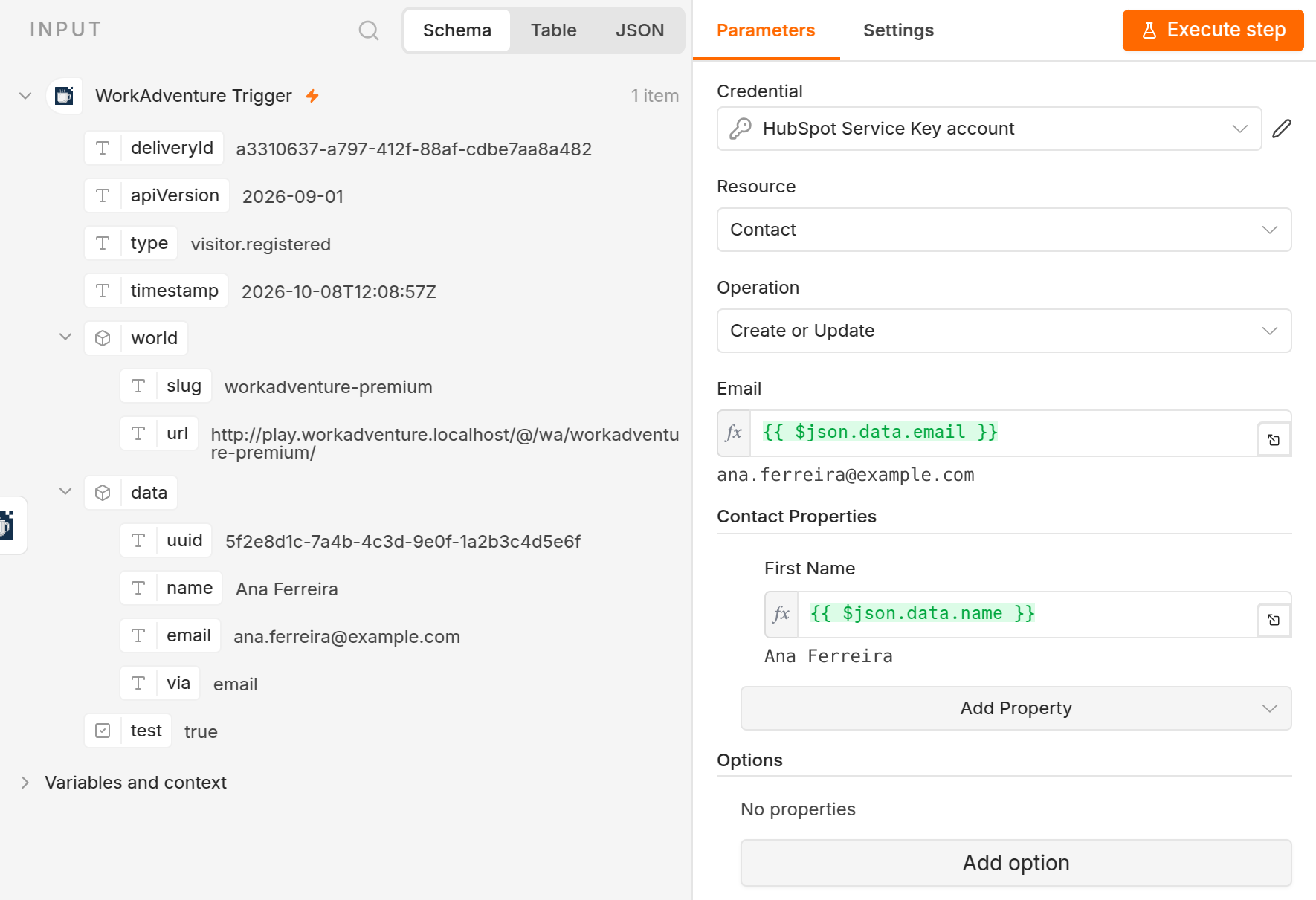
Instead of typing the expressions, you can drag the fields from the input panel on the left once you have tested the trigger.
Test it
In n8n, click Execute workflow. n8n registers a temporary webhook in your world and waits for an event for about two minutes.
In the WorkAdventure admin, open Developers > Webhook settings, then the webhook whose URL contains
webhook-test. Pickvisitor.registeredand click Test.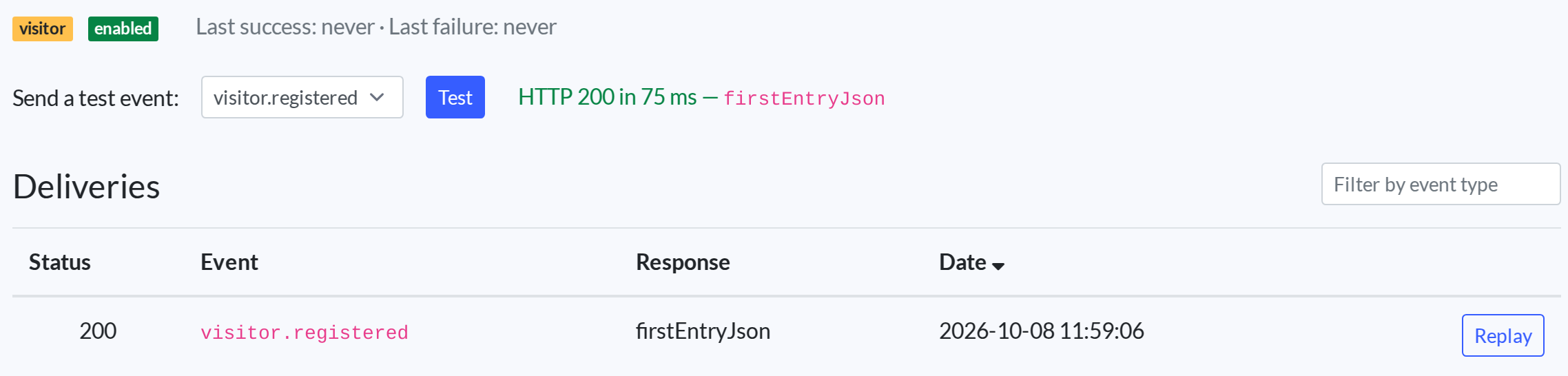
Both nodes turn green in n8n.
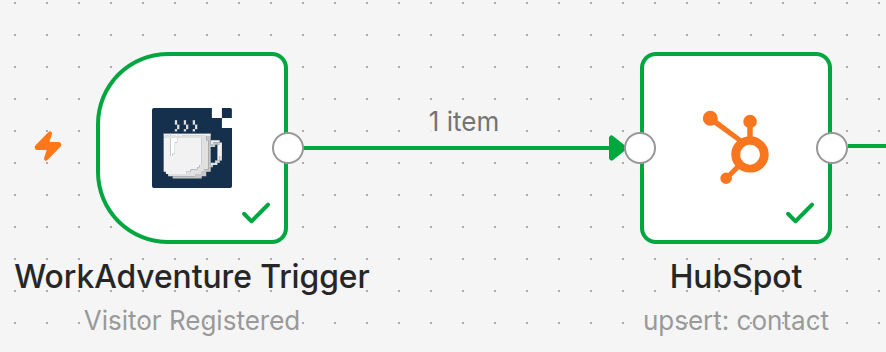
In HubSpot, a contact named Ana Ferreira, the sample visitor, shows up. HubSpot makes it a Lead. Delete it once you are done testing.
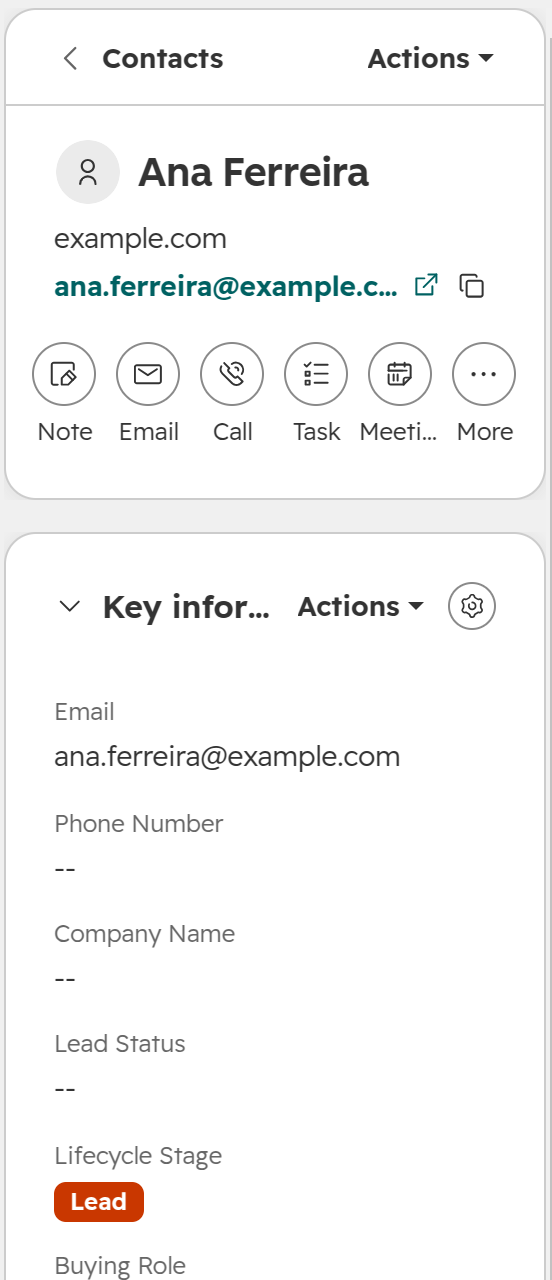
When it works, click Publish: from now on, every new visitor lands in HubSpot. Test events from WorkAdventure don't start a published workflow, so the sample visitor won't come back.
Step 4: keep the newsletter consent in sync
Why ask for consent?
A new contact in your CRM is not yet someone you can email. To send newsletters, promotions or event announcements, you need their agreement. People who opted in actually read what you send, and they don't mark it as spam.
In many places, it is also the law. In the European Union and the United Kingdom, marketing emails to private individuals generally require their prior consent, and that consent must be freely given, specific and recorded (GDPR and ePrivacy rules). Canada's anti-spam law asks for consent too. Elsewhere, for instance under the US CAN-SPAM Act, an unsubscribe link may be enough, but asking costs nothing and works everywhere. This is not legal advice: check what applies to you.
Ask your visitors
WorkAdventure only asks for consent for the purposes you declare. Without one, the sign-up form has no checkbox, and Consent Changed never fires.
In the admin dashboard, open Settings > Privacy / Compliance and turn on Send Newsletters and Promotional Materials: it is marked Consent required. The What your visitors will see panel shows the checkbox your visitors will get. Click Save personal data usage settings.
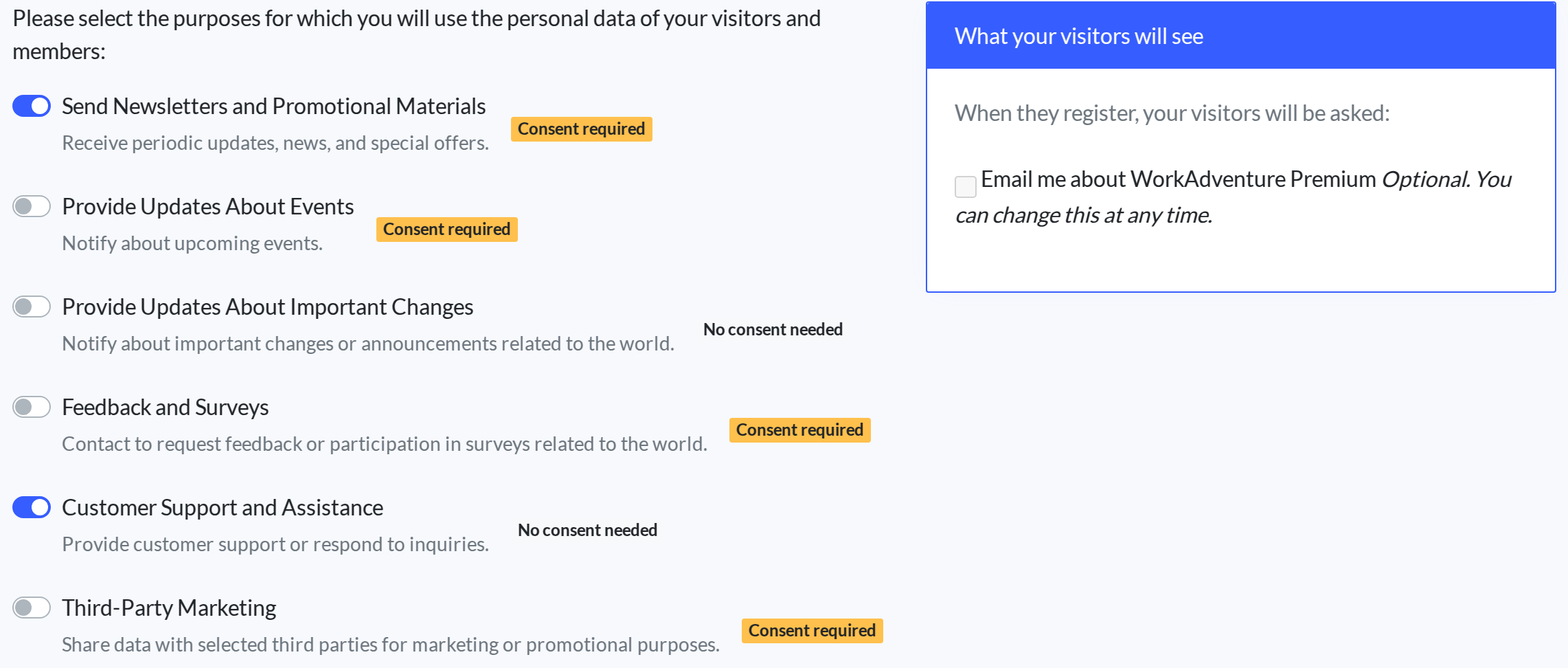
The sign-up form now asks the question, with an unticked checkbox:
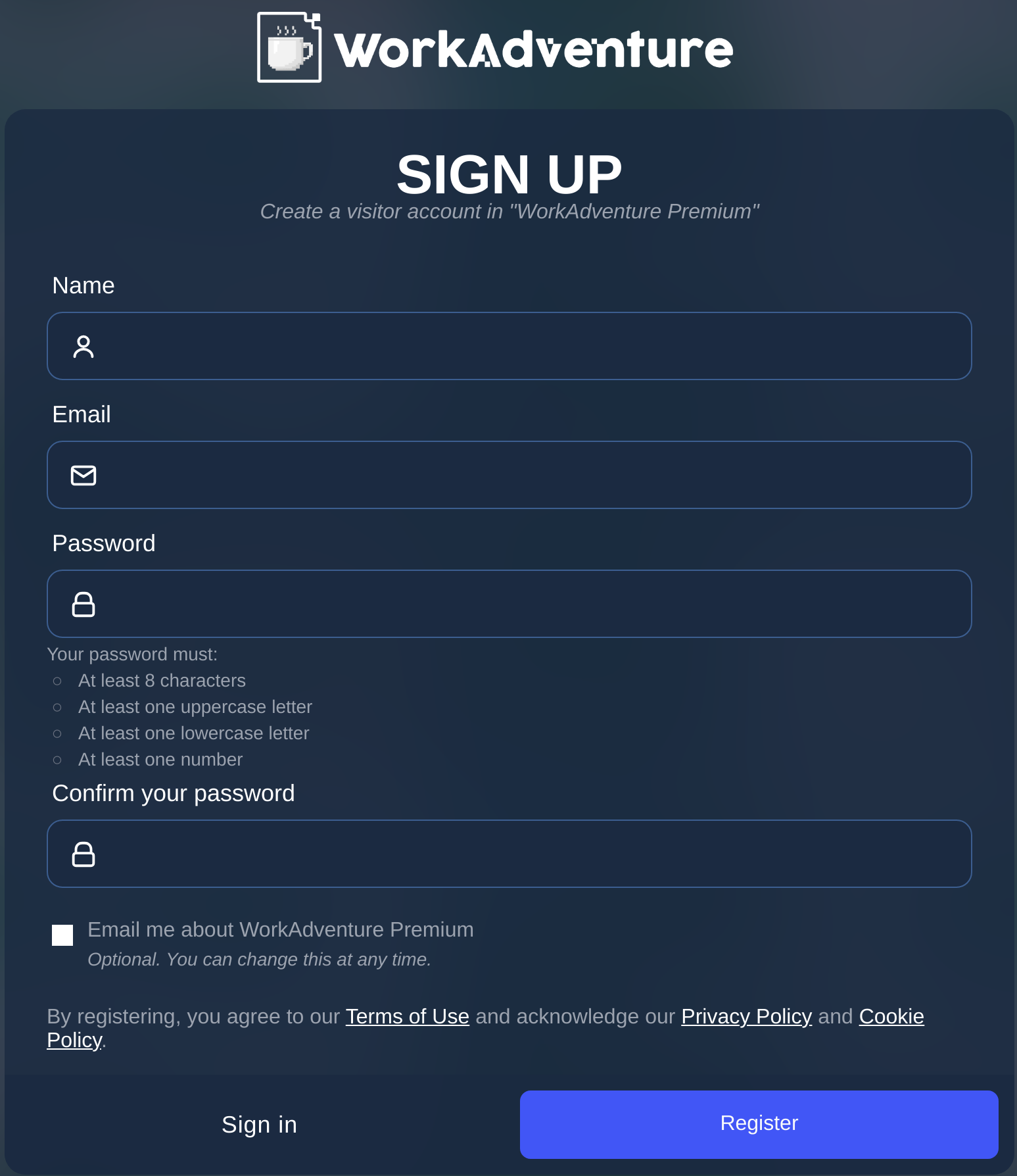
Visitors who registered before you declared the purpose are asked at their next login. Anyone can change their mind later from Privacy choices in the in-game menu, which sends a new Consent Changed event. See Configuring your privacy policy for the details.
Newsletters, events and surveys share a single checkbox ("Email me about…"), but each purpose gets its own Consent Changed event. That's why the workflow below filters on the purpose.
Sync the answer to HubSpot
Create a second workflow, with a WorkAdventure Trigger on Consent Changed. You receive one event per decision and purpose.
Add a Filter node that keeps the newsletter decisions:
{{ $json.data.purpose }}is equal tonewsletter.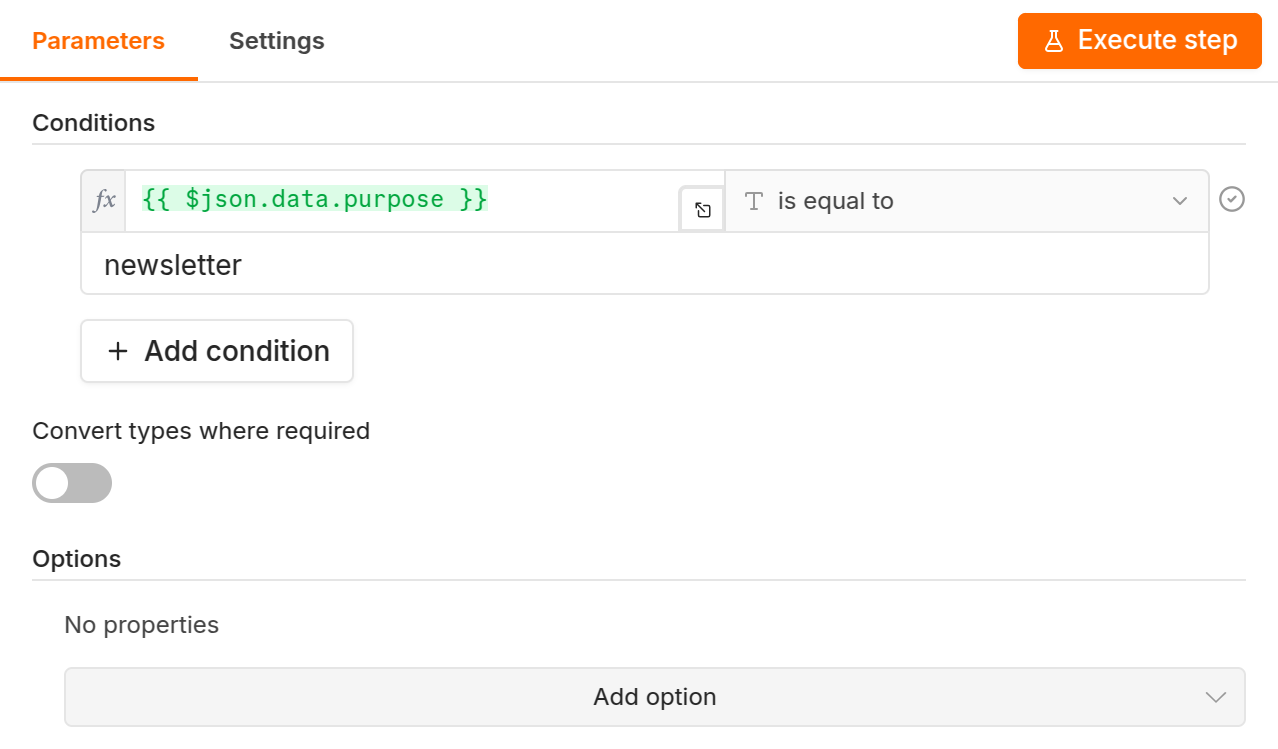
The other purposes are
events,feedback_survey,third_party,communityandcustom, depending on what your privacy policy asks for. Duplicate the workflow for each one you track.Add a HubSpot node, Create or update a contact again:
- Email:
{{ $json.data.email }} - Contact Properties: add Custom Properties, pick WorkAdventure newsletter consent and set the value to
{{ $json.data.granted === true }}
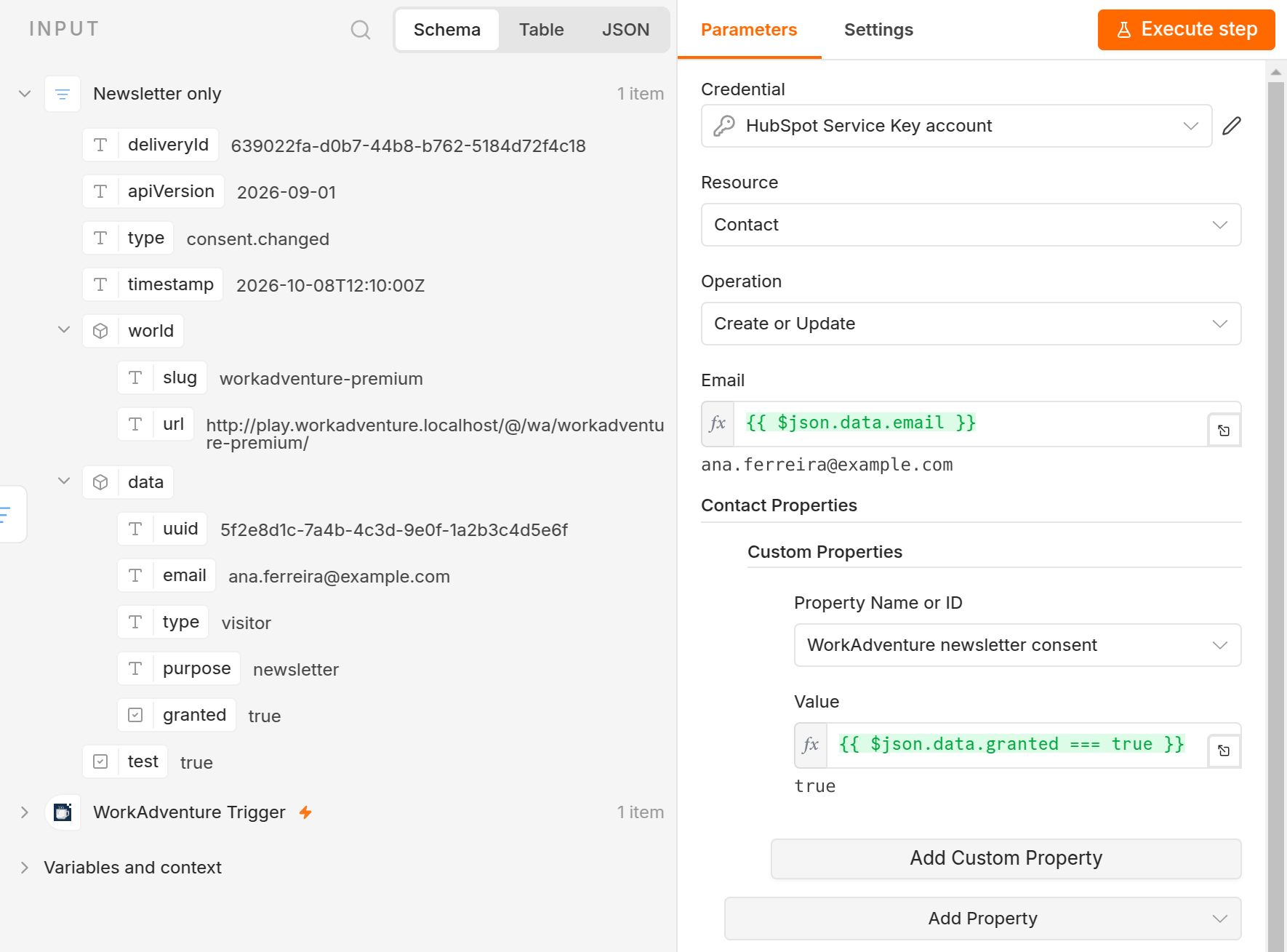
grantedistruewhen the person agreed,falsewhen they refused or withdrew their consent, andnullwhen an administrator took the decision off the record. The expression turns the last two into "no".- Email:
Test it like the first workflow, sending
consent.changedinstead.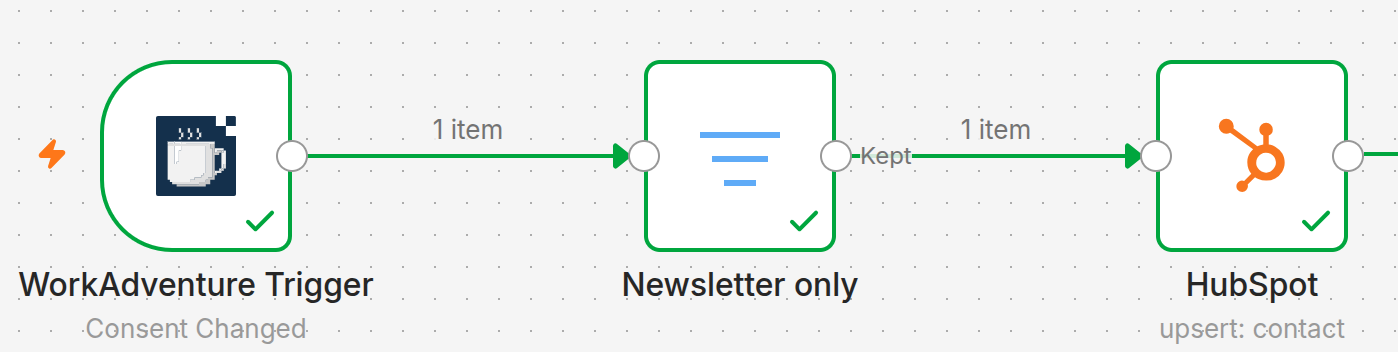
On Ana Ferreira's contact, Actions > View all properties now shows the consent:
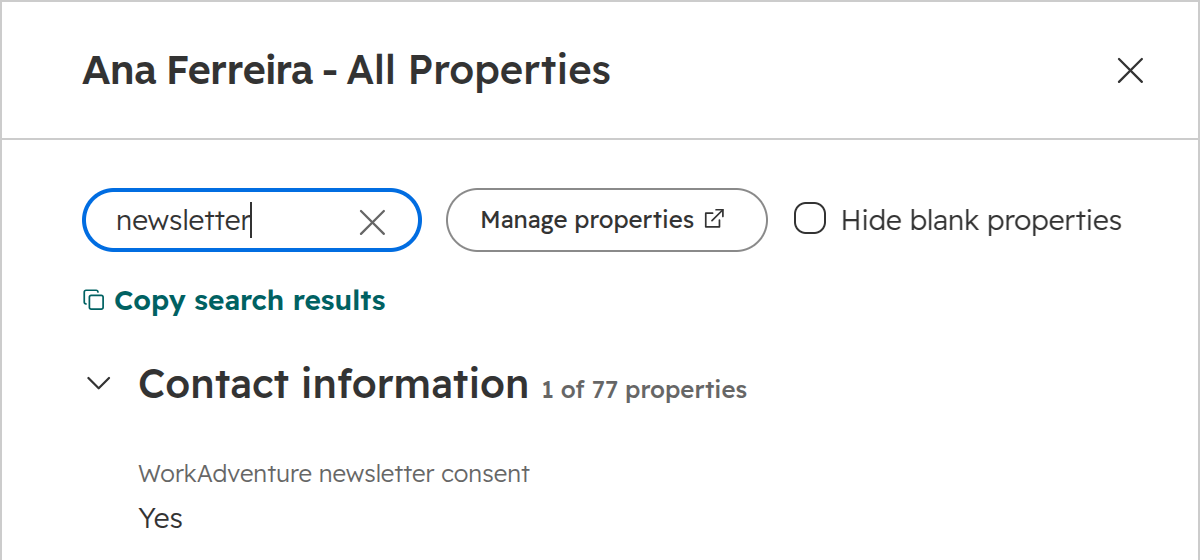
Click Publish.
You can now filter your HubSpot lists and email campaigns on WorkAdventure newsletter consent.
Other CRMs
The WorkAdventure side stays the same. Replace the HubSpot nodes:
- Pipedrive: its node has no create or update. Search the person by email first, then Update or Create them, with an If node in between.
- Other CRMs: n8n has nodes for most of them. Use their create-or-update action (sometimes called upsert) on the email when they have one.
You can also use Zapier instead of n8n. The WorkAdventure triggers are the same, but the CRM actions differ. In Zapier: use the New Visitor and New Consent Decision triggers to start the zap.