n8n
WorkAdventure provides n8n nodes. Your workflows can create / retrieve / delete members, and start when something happens in your world: a recording is ready, a visitor signs up, someone changes their consent, a member connects.
The nodes call the WorkAdventure Inbound API and receive its webhooks. If you are a developer, you can use both directly.
Install the nodes
- n8n Cloud: open the nodes panel in a workflow, search for "WorkAdventure" and install it.
- Self-hosted n8n: go to Settings > Community Nodes, click Install and enter
@workadventure/n8n-nodes-workadventure.
Connect n8n to WorkAdventure
All the pieces of information you need are in the WorkAdventure admin dashboard, in the Developers > API keys / Zapier page (in the left sidebar):
- In the "API Tokens" section, create a new token.
- Enable the "Inbound API".
In n8n, create a WorkAdventure API credential and fill in:
- Admin URL: keep
https://admin.workadventu.re - World Slug: the world slug shown on that page
- API Token: the token you created
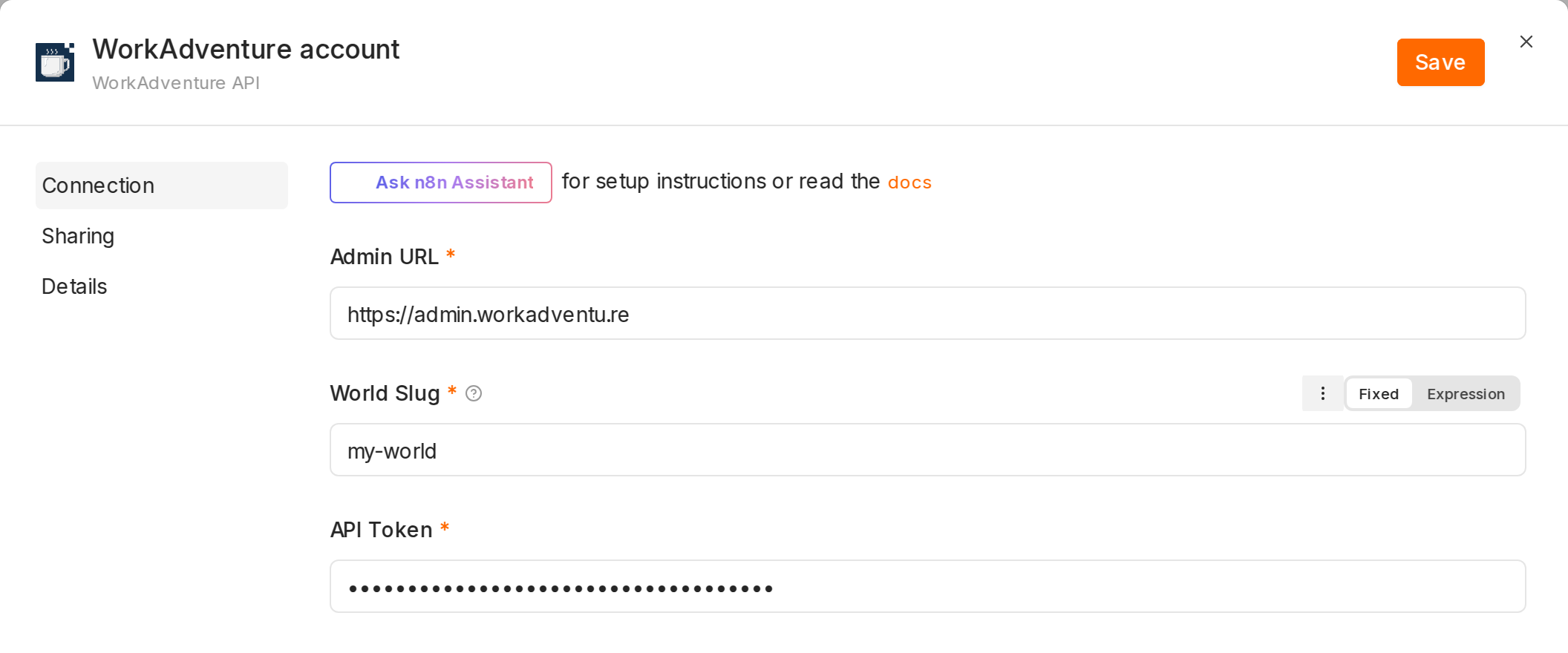
Save the credential: n8n checks it right away.
Actions
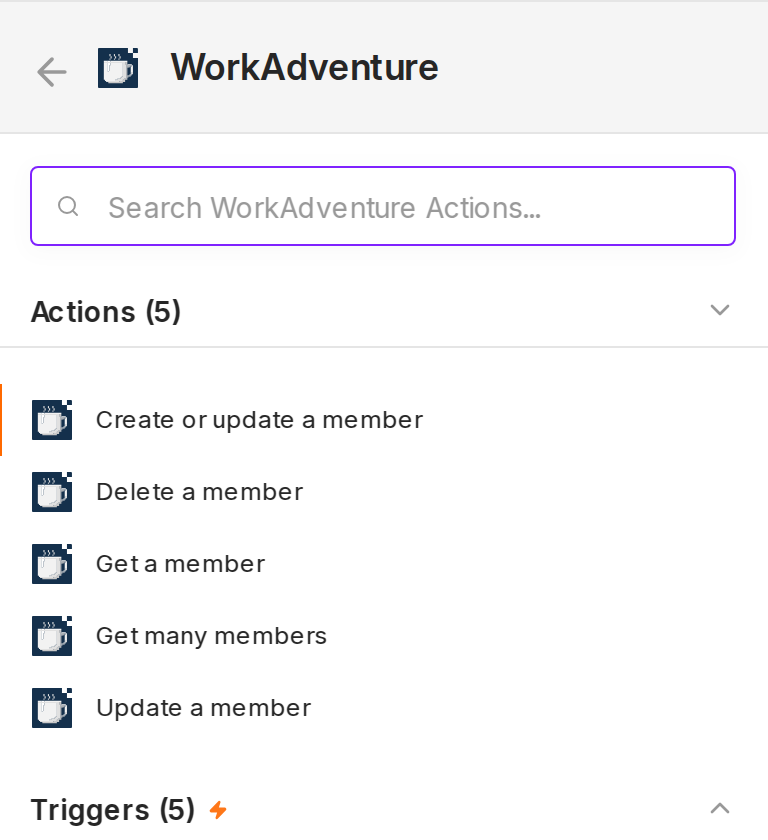
The WorkAdventure node provides these operations on members:
- Create or Update: if a member with this email already exists, all their fields are overwritten
- Update: only the fields you fill in are changed
- Delete
- Get: by UUID or email. It fails when the member does not exist (turn on Continue on Fail to carry on)
- Get Many: the members and/or visitors of your world
Tags are comma-separated, e.g. admin, speaker, and replace the existing tags of the member. Members returned by these
operations include their private access link to each room of your world, ready to send by email.
Start a workflow from a WorkAdventure event
Add a WorkAdventure Trigger node and pick the events that start the workflow:
- Recording Completed: a recording of a meeting is ready. Its download link is valid for 7 days, so copy the file rather than the link.
- Visitor Registered: a visitor signed up.
- Consent Changed: someone gave, refused or withdrew their consent to one purpose (newsletter, events…). Stop
using their data for that purpose when
grantedisfalseornull. - Member Connecting: someone is connecting to your world. See below.
- Analytics (Experimental): every analytics event of your world, in batches. This is a lot of executions: keep it for workflows that store or aggregate the events.
Each execution receives one event; its fields are described in the event catalogue.
You don't need to set anything up in WorkAdventure. When you click Execute workflow or publish the workflow, the node creates a webhook in your world, which you can see in Developers > Webhook settings, and deletes it when the test ends or the workflow is unpublished. To try the trigger, click Execute workflow in n8n, then click Test on that webhook's page in WorkAdventure within two minutes. Test events don't start the workflow once it is published.
For a complete example, see Send new visitors to your CRM.
If WorkAdventure disables that webhook after repeated failed deliveries (while your n8n was down, for instance), re-enable it on its page.
Your n8n must be reachable from the internet over HTTPS, which n8n Cloud is.
Change tags as a member connects
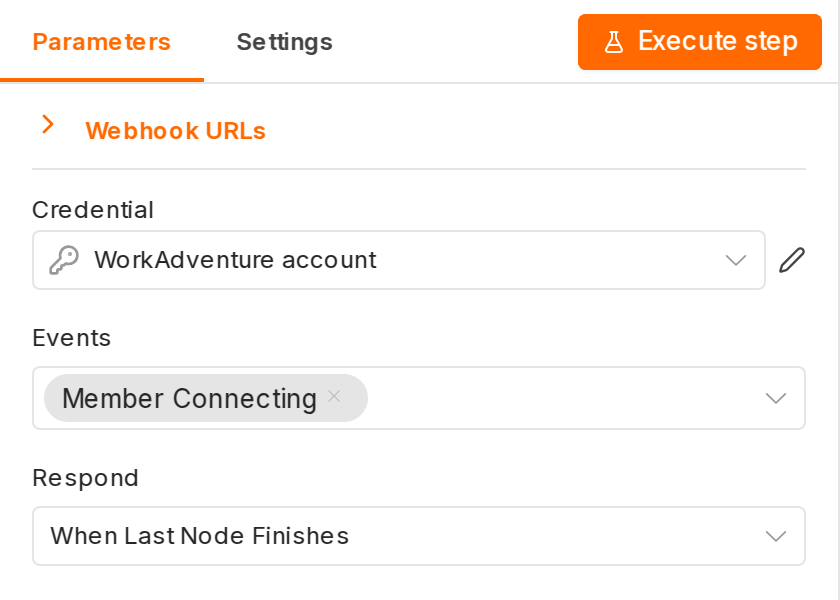
Member Connecting is sent while the member is being authenticated, and WorkAdventure waits up to 5 seconds before letting them in. Set the trigger's Respond option to When Last Node Finishes, and update the member with the WorkAdventure node (Update, with the member's UUID from the event): the new tags apply to this connection. Keep that workflow short. If it takes longer than 5 seconds or fails, the member connects with the tags they already had.
If your SSO exposes OAuth access tokens, they are part of this event: n8n keeps them in its execution history unless you turn off saving successful executions in the workflow settings.